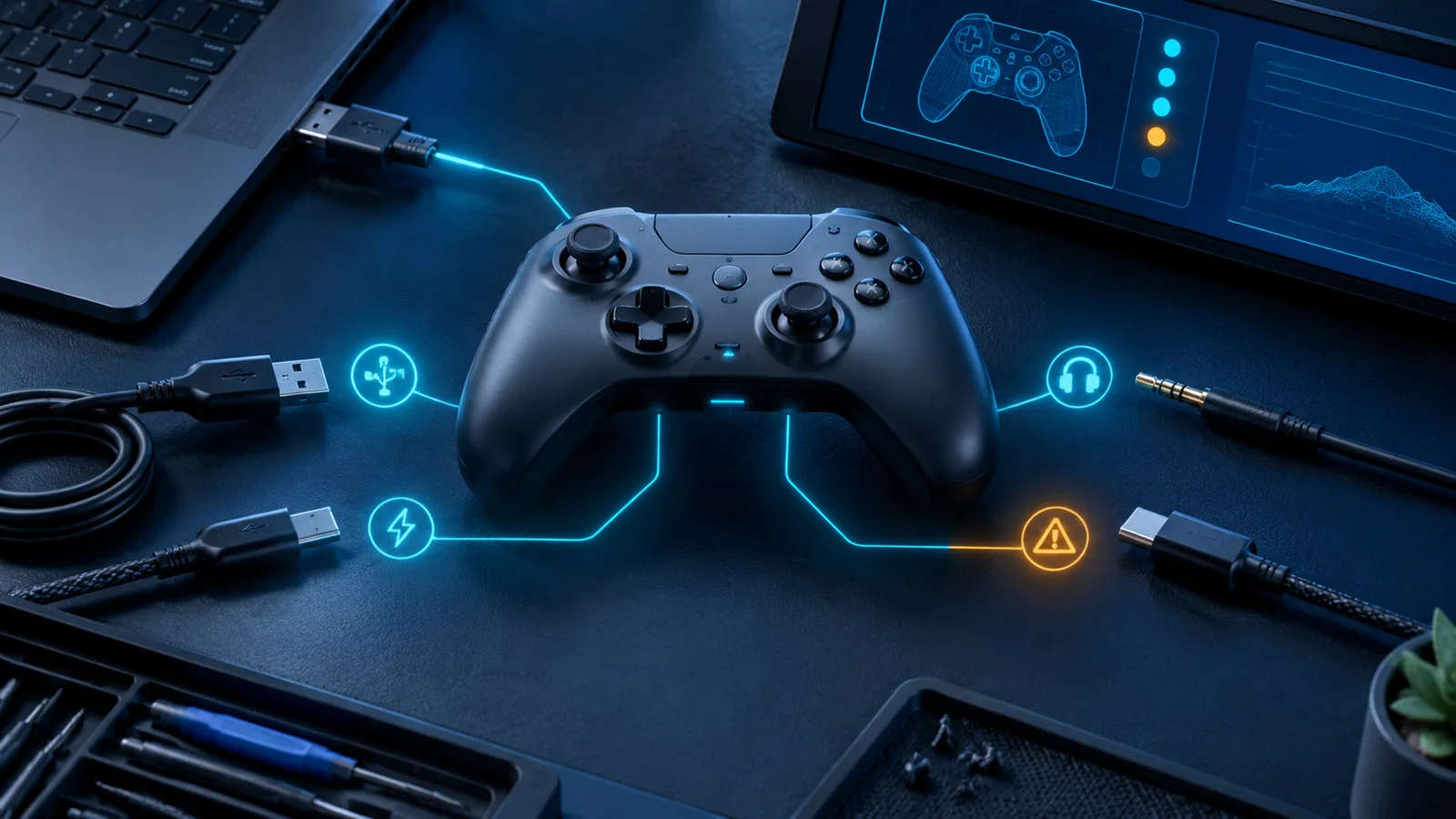
Five-minute fault isolation
- 1
Can Zen Studio see the device?
If no, stay at the PC/USB/firmware layer. Do not edit the script yet.
- 2
Does the untouched GPC compile?
If no, capture the exact line and compiler message. Do not tune values until the source builds.
- 3
Does normal controller input pass through?
If no, check ports, authentication, output protocol, cable, and controller support.
- 4
Is the programmed slot active?
If no, select the correct slot and verify the expected OLED label and script toggle state.
- 5
Is only timing wrong?
If yes, freeze the setup and move to controlled calibration instead of reinstalling the device stack.
Zen Studio does not detect Cronus Zen
- Use the PROG USB connection for normal Zen Studio configuration, not a random device port.
- Replace the cable with a known data-capable cable; a charging cable can power the Zen without carrying data.
- Connect directly to the PC rather than through an unpowered hub or unstable front-panel extension.
- Close other tools that may be accessing the device, then reopen Zen Studio.
- Check the official downloads and firmware pages for the current supported Studio/firmware pair.
- If recovery is required, follow the official bootloader instructions instead of improvising a reset sequence.
Official references: Zen Studio setup and firmware update.
The GPC file reports compile errors
| Symptom | Likely cause | Action |
|---|---|---|
| Error on untouched source | Source/version incompatibility or incomplete file | Save the exact compiler text and compare with the clean download |
| Error after value edit | Deleted punctuation, changed type, or invalid value | Diff against the backup and revert the last edit |
| Unexpected character | Copied smart quotes or formatted text | Use plain-text source and retype the affected character |
| Unknown identifier | Renamed variable or missing included code | Restore the original name/source and confirm all required blocks exist |
| Compiles on another guide's screenshot only | Different script or Studio/compiler generation | Use the error from your actual source and current official tool |
Capture the first error
Later compiler errors can cascade from the first broken line. Fix one root error, compile again, and avoid mass editing based on the final message.
The device connects but controller input does not reach the game
- Test the controller directly on the platform to rule out the controller and cable.
- Confirm the platform-specific authentication controller or expansion module requirement.
- Match the controller to the supported USB, adapter, or wireless path; names alone are not enough—model variants matter.
- Check the Zen output protocol and use the official port diagram for the selected platform.
- Remove extra peripherals and test the smallest supported connection chain first.
- Once pass-through works, add the script and other devices back one at a time.
Controller works but the script appears inactive
- 1
Confirm programming completed
Open the Programmer panel and verify the intended script is actually stored in a slot.
- 2
Select the same slot on the device
The active OLED slot should match the one programmed in Studio.
- 3
Read the activation controls
Some scripts start disabled or require a button combination. Check the source header rather than guessing.
- 4
Test an observable, low-risk function
Use a practice environment and one clear feature to verify execution before touching timing.
- 5
Recompile the exact saved copy
Make sure Studio did not program an older compiled version while you edited another file.
Script runs, but release timing is inconsistent
Mixed early and late feedback is not automatically a bad value. It can show that the test environment is unstable or that different animations are being grouped together.
- Lock the jump shot, visual cue, location, stamina state, display mode, and controller path.
- Separate offline and online results; do not average them into one number.
- Check frame-rate stability and disable television post-processing that changes input latency.
- Make sure only one script feature affects the shot input.
- Return to the original default after a patch, then rebuild the baseline in small steps.
Random disconnects, power, or headset issues
The official Cronus controller guide notes that wireless paths can lose controller audio and that some controller/headset combinations are not guaranteed. It also warns that a connected controller may not charge normally through every setup.
| Problem | Isolation test |
|---|---|
| Controller disconnects | Fully charge it, use a known-good USB data cable, remove extra peripherals, and retest wired |
| Headset stops working | Connect the headset before the controller/Zen chain where the official guide specifies, then test a supported USB path |
| Zen reboots | Check direct power/data connections and remove high-draw accessories |
| Wireless is unstable | Test wired first; then confirm the officially supported adapter or module for that controller/platform |
Use a clean rollback test before resetting
- 1
Save your evidence
Keep the original and edited GPC files, compile message, firmware/Studio versions, and a photo or note of port connections.
- 2
Select an empty or known-good slot
Determine whether the issue follows the third-party script or the base device/controller chain.
- 3
Test minimum hardware
Use one supported controller and the required authentication path, with no optional accessories.
- 4
Add one layer at a time
Restore the script, timing edit, headset, adapter, or other accessory separately until the failure returns.
When to escalate
If the base device is not detected across known-good cables/ports, or official recovery fails, stop repeated resets and use Cronus support with the evidence you collected.